Token Action HUD (TAH)
← Back to Home · Token bars: Token Display
Custom action menu attached to the token: actions, weapons, systems, frame abilities, talents, skills, statuses, scan glossary, and an action log. Beta. On by default.
Enabling and opening
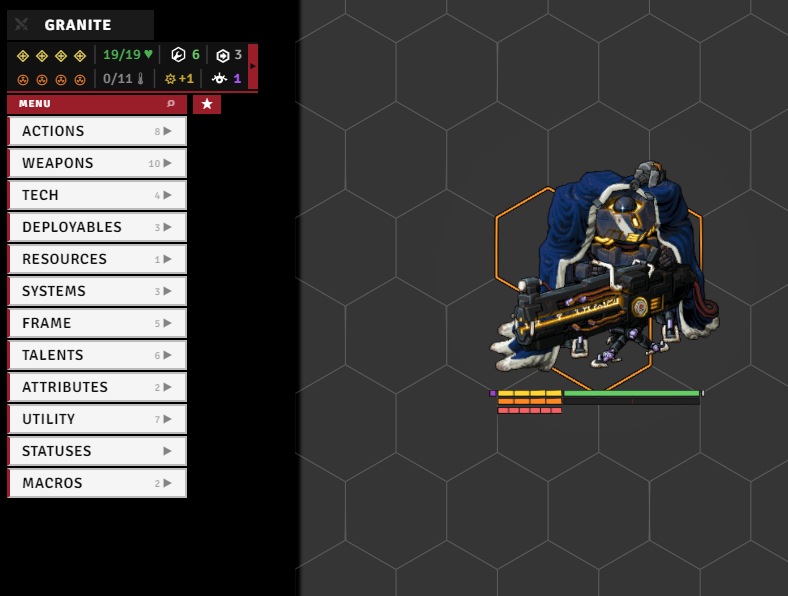
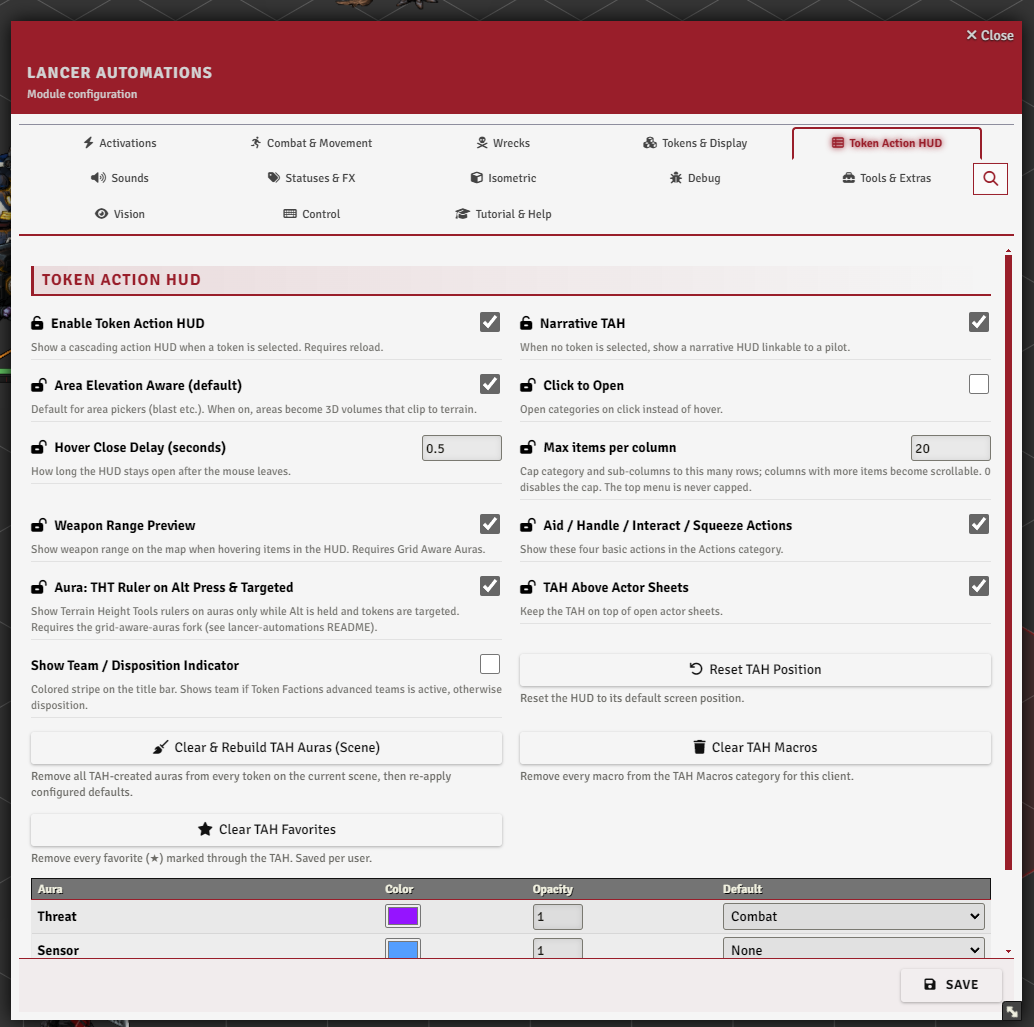
It is on out of the box, from the Enable Token Action HUD setting (tahEnabled, needs a reload). It attaches near the top-left of the screen:
- Move it by dragging, after unlocking it: the HUD starts locked, so click the 🔒 on the title bar first. The reset button puts it back. Stays above open actor sheets (
tah.aboveActorSheets). - Categories open on hover by default, or set
tah.clickToOpento open them on click.tah.hoverCloseDelaycontrols how long the menu lingers after the mouse leaves, andtah.maxColumnItemsmakes long columns scroll.
Its settings live in the Token Action HUD tab.
The header
The bar at the top of the HUD shows:
- the token name - click it to open the actor sheet (shows "N TOKENS" when several are selected),
- a combat toggle (the swords icon) to add or remove the token from combat,
- an optional team / disposition stripe down the edge (
tah.showDisposition, uses Token Factions teams if installed, otherwise the disposition), - an optional portrait above the bar: token art or actor portrait (
tah.portrait.mode), overridable per token in the L.A tab of the token config.
Stats bar
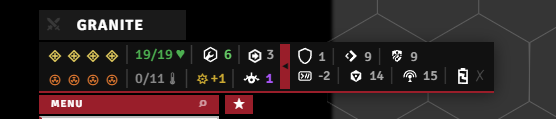
A compact readout under the header: HP, structure, overshield, repairs, and movement (used/cap in combat, or speed outside it), then heat, stress, pilot bond stress, burn, infection, overcharge, and reaction. A toggle slides out a secondary row: armor, evasion, e-defense, tech attack, save, sensor range, and core power.
Combat bar
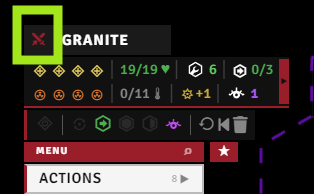
Appears while combat is running:
- Activation pips - click to spend one (start your turn), right-click to toggle availability by hand.
- An end-turn button (right-click to end the turn and give back one activation).
- Action-status icons (protocol / move / full / quick / reaction) you can toggle.
- Buttons to reset actions, revert your last move, and clear movement history (movement itself lives in Movement).
Action menus
The left column lists categories. Opening one cascades its items out to the right. Which categories appear depends on the actor (mech / NPC / pilot / deployable).
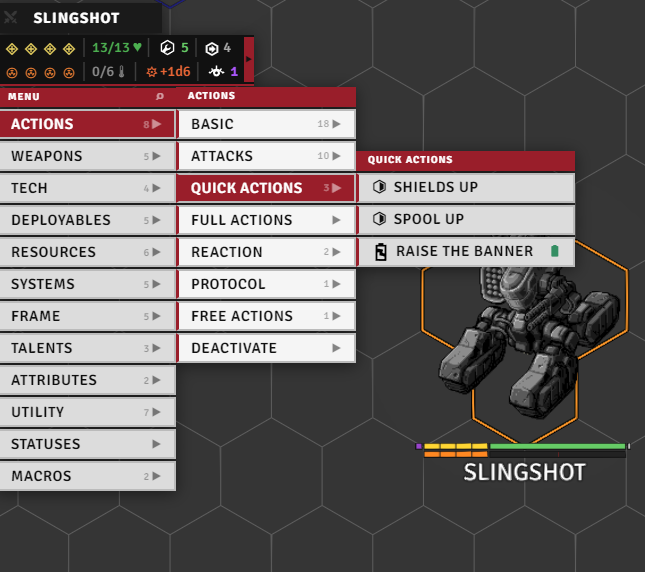
| Category | Holds |
|---|---|
| Actions | Basic quick and full actions, an Attacks submenu (below), plus your quick / full / reaction / protocol / free actions, and a Deactivate group for active items |
| Attacks (in Actions) | Skirmish, Barrage, Ram, Grapple, Improvised Attack (mech / NPC), Fight (pilot), then a Tools group: Basic Attack, Damage, Throw Weapon, Pickup Weapon |
| Weapons | Equipped weapons, grouped by mount (mech) or listed flat (NPC / pilot) |
| Tech | Basic Tech, Scan, Lock On, Bolster, Invade |
| Systems | Equipped systems (mech) or system features (NPC) |
| Frame | Core system, traits, integrated systems, built-ins (mech). Stats, traits, class features (NPC) |
| Pilot / Pilot Gear | Pilot stats, talents, gear, skills |
| Talents / Skills | Talent ranks and skill checks |
| Deployables | Deploy, recall, and link buttons, plus the actor's deployables |
| Resources | Counter cells for resources, extra trackables, and ammo |
| Utility | Six submenus: Gameplay (full repair, structure, overheat, resurrect, recharge, reload, generate scan, Effect Manager, reinforcement, hide/reveal), Movement (knockback, teleport, fall, revert, reset history), Measures (see below), Log, Glossary, and Misc (Vote, Downtime, Reserve, Rest, Add Extra) |
| Statuses | Opens the status panel (below) |
| Macros | Your pinned macros (tah.macroList), right-click a slot to edit it |
Toggle tah.showAidHandleInteractSqueeze to show or hide the Aid, Handle, Interact, and Squeeze entries in the Actions category. These come from PPG (Prototype Pattern Group).
See also: movement actions → Movement, resurrect → Wrecks, reinforcement → Gameplay Automation, scan → Gameplay Automation.
Item interaction
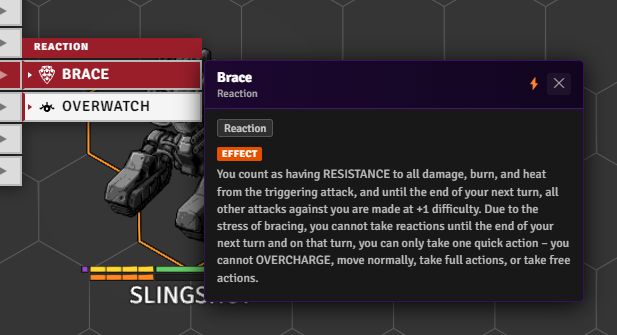
Right-click any item for a detail popup with its description, tags, range / activation, and action-type icon. Menu rows and popups also carry the small markers below.
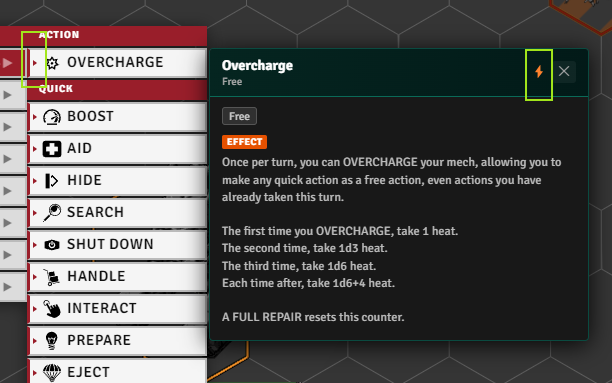
Automation indicator - a tiny triangle on the menu row, and ⚡ in the popup header, mean the item or action has automation.
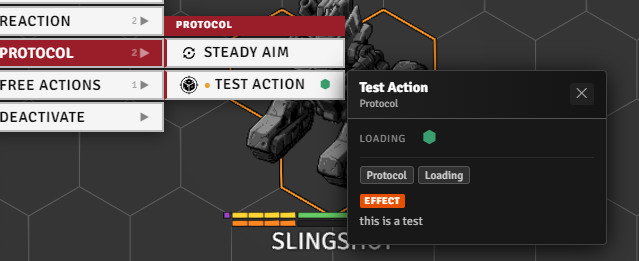
Extra-action dot - an orange ● before an action's name means it was added by extras-UI code (e.g. via addExtraActions, or attached to an item by a registered activation) rather than by the system itself.
Disable / destroy toggles appear on items that support them (grayed when off, colored when on), and status badges show an item as available, active, destroyed (striped), or locked by a status (faded, clicking still fires it with a warning).
Status panel
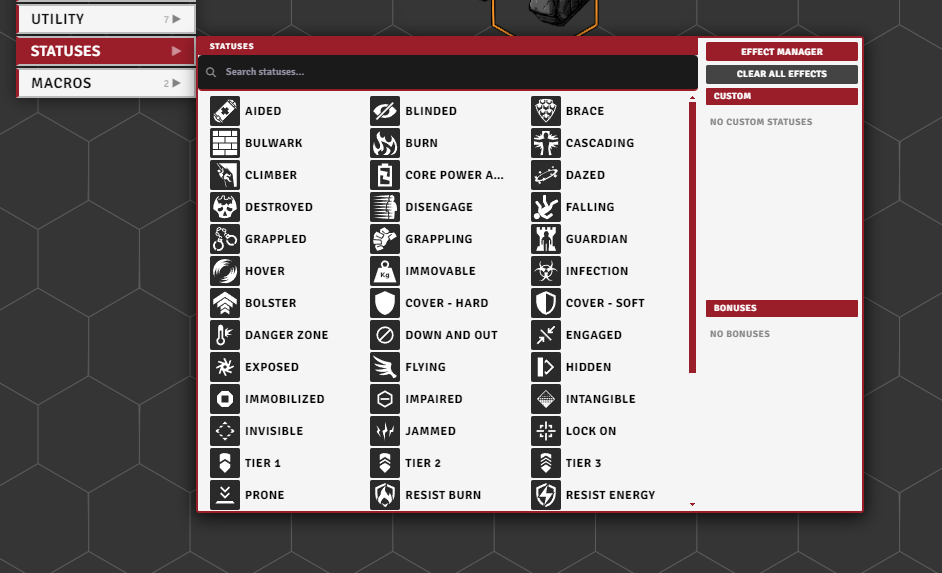
Press Shift+Z (or click the Statuses row) to open it. Search and toggle statuses on a grid: left-click adds or increments a stack, right-click removes one. When a status comes from several sources, a sub-manager lets you adjust each one. The panel also:
- lists the token's bonuses (with a trash button to remove them),
- links to the Effect Manager (see Effects & Bonuses),
- has a clear-all-effects button,
- and shows your custom statuses when Temporary Custom Statuses is installed.
Log panel
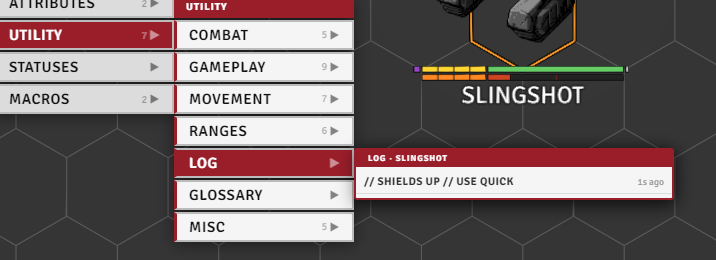
The token's last ~40 action cards, newest first. Click one to expand the full card again.
Glossary panel
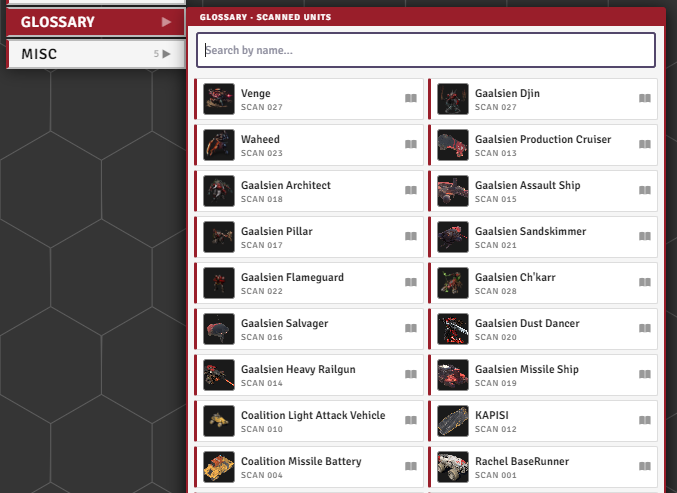
The scans you've run, shown with portraits and names and searchable by name. Click one to open its scan journal entry. (The scan tools themselves are in Gameplay Automation.)
Search, favorites, macros, and HUD position
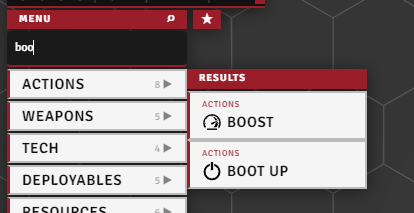
Search - press Shift+F (or click the search icon) to filter every category at once. Matches gather into a single column as you type.

Favorites - Ctrl+right-click an item to pick its wheel. The star tab on the HUD's edge gathers your favorites in one place, and Shift+X opens or closes that column.
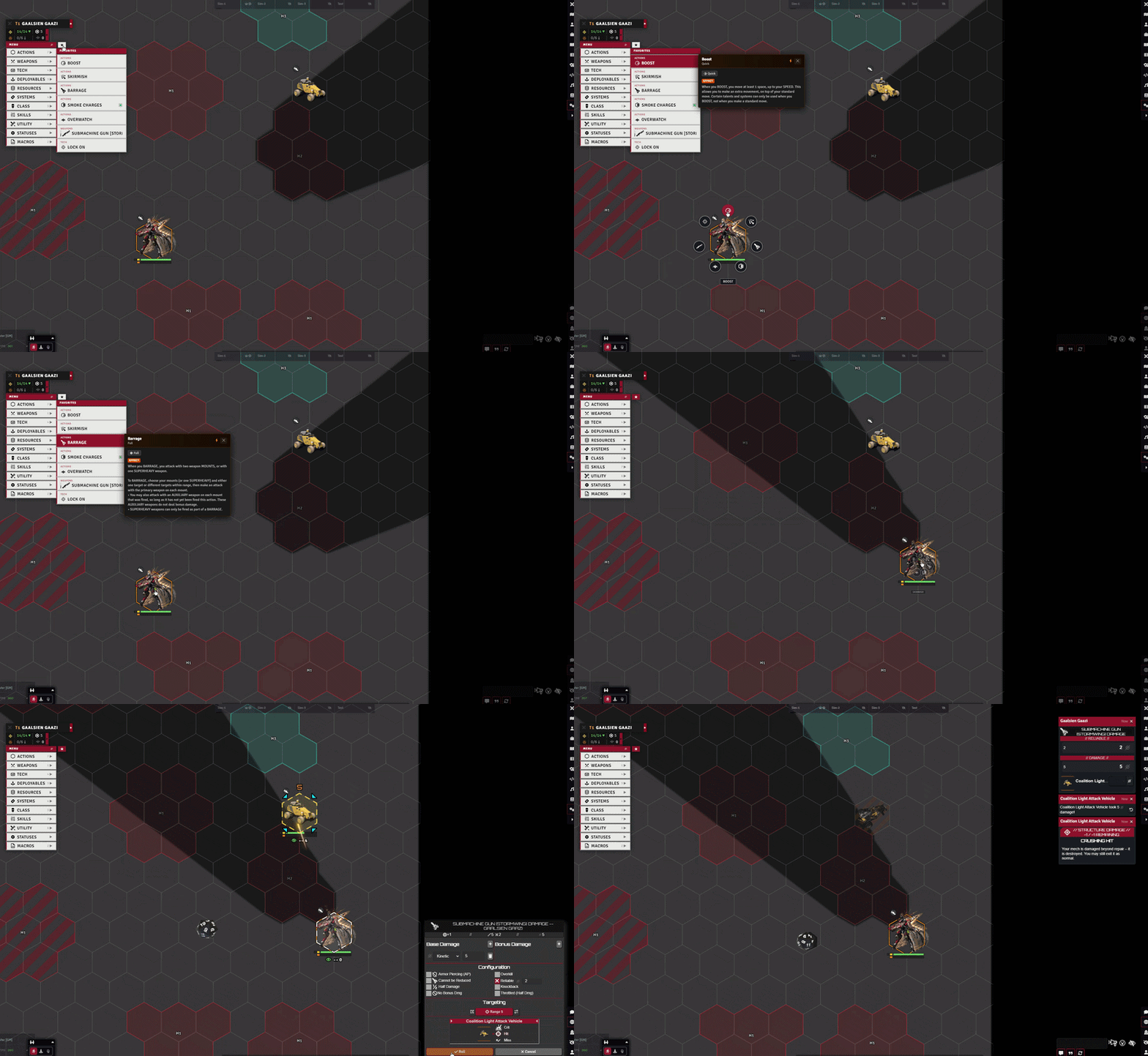
Action Wheel - press F on a selected token to get your favorites as a wheel around it. Click to use, right-click for details, hover for the range preview. Tab switches to the second wheel.
Status Wheel - press G for the token's statuses and your starred ones. Click to apply, right-click to remove.
Wheel size - Wheel Radius Offset under Radial Wheels moves the ring in or out.
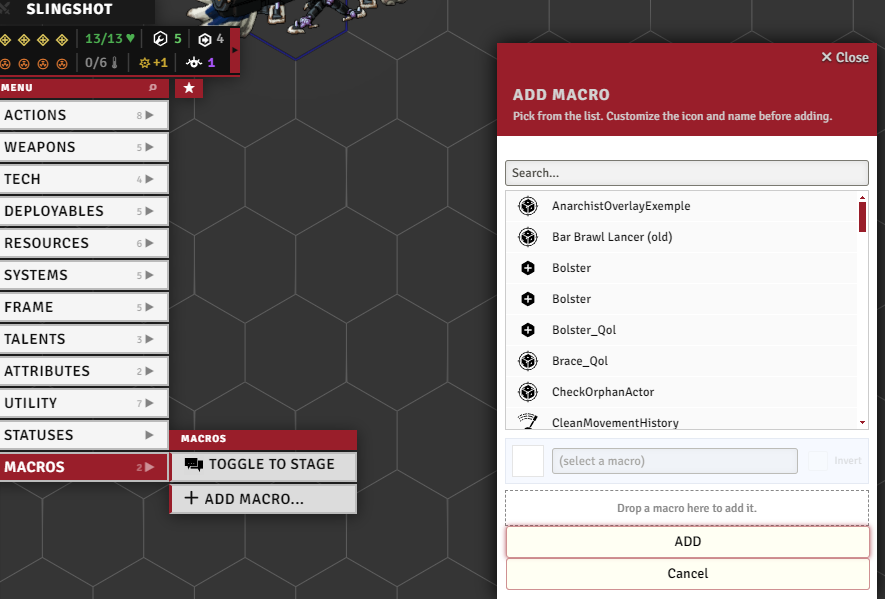
Macro slots - right-click a slot in the Macros row to open its edit dialog, then drop a macro from the hotbar onto the drop zone to assign it.
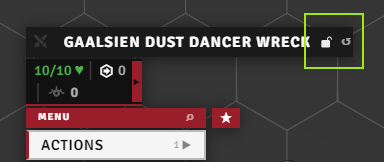
HUD position - the 🔒 icon on the title bar unlocks the HUD for dragging (cursor turns to grab, ↺ resets to default).
Keyboard control
With tah.keyboardNav on (default), you can drive the whole HUD from the keyboard:
- Shift+WASD moves a cursor through the menus: up/down within a column, left/right to step into a submenu or back out.
- Shift+E activates the focused row (left-click), Shift+Q opens its context action (right-click).
- The cursor clears after a spell of no input.
tah.keyboardNavResetDelaysets how long it lingers.
The nav keys are rebindable under TAH: Move / Activate / Context in Foundry's Configure Controls. Bare W/A/S/D/Q/E nudge the selected token. Turn on tah.preventWasdMovement to block that during nav.
Range previews and measures
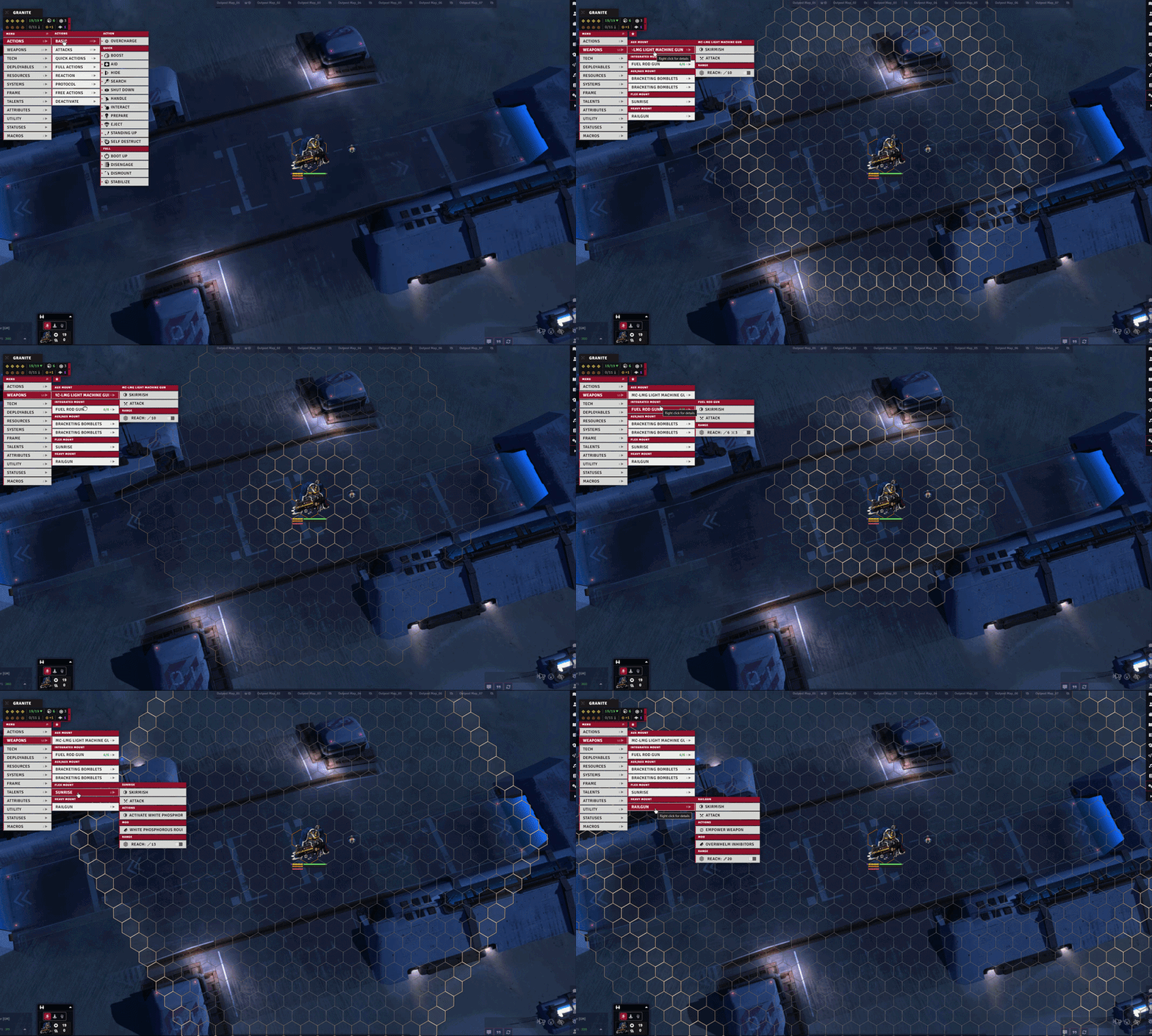
Hover preview - hovering a weapon or action pulses its range on the canvas (tah.rangePreview). The attack card can pulse the attacker's range too (tah.rangePreviewOnAttackCard). Works standalone, no extra module needed.
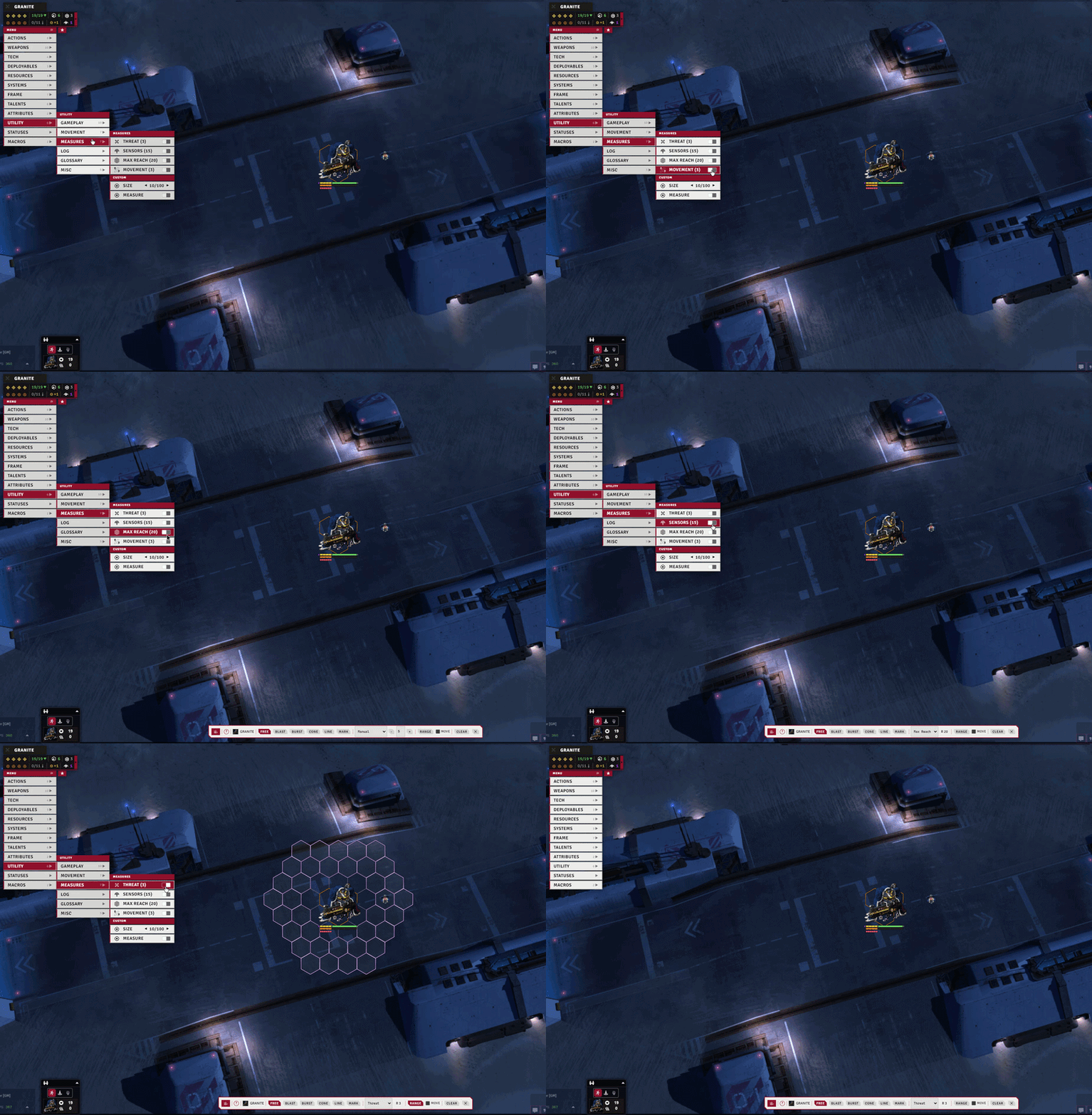
Range measures - toggles in the Utility → Measures menu that drive the Advanced Measure tool to pulse a range on the canvas: Threat, Sensors, Max Reach, and, when the Lancer ruler is on, Movement. A Custom measure lets you set a size and toggle it on.
Area Elevation Aware (tah.areaElevationAware) - not a measure, it is the default for the area pickers (blast, cone, and the like). When on, areas become 3D volumes that clip to terrain.
Narrative mode
With tah.narrativeMode on, the HUD still shows when no token is selected, linked to one of your pilots (pick it from the header). Exposes the pilot-relevant categories: pilot, skills, resources, utility, macros.
Notable options
| Option | What it does |
|---|---|
| Token HUD buttons | One toggle each for the buttons on Foundry's own token HUD: Status Effects, Combat State, Target State, and Revert Last Movement / Reset Movement History. |
| Custom Status HUD Button | Mirrors the Temporary Custom Statuses setting: adds its status button to Foundry's token HUD. |
| Narrative TAH | When no token is selected, show a narrative HUD linkable to a pilot. |
| TAH Above Actor Sheets | Keep the TAH on top of open actor sheets. |
| Show Team / Disposition Indicator | Colored stripe on the title bar: team if Token Factions advanced teams is active, otherwise disposition. |
| Click to Open | Open categories on click instead of hover. |
| Hover Close Delay (seconds) | How long the HUD stays open after the mouse leaves. |
| Max items per column | Rows per column before it scrolls (0 = no cap, top menu never capped). |
| HUD Scale | Size of the Token Action HUD and its popups. |
| HUD Portrait | Artwork above the name bar: none, token art, or actor portrait. Tokens can override it in the L.A tab. |
| Portrait Applies To | Mechs and pilots only, or all actors. |
| Mechs Use Pilot Art | Draw the linked pilot's image instead of the mech's. |
| Portrait Scale | Size of the portrait. |
| Weapon Range Preview | Show weapon range on the map when hovering items in the HUD. Works standalone, no extra module needed. |
| Aid / Handle / Interact / Squeeze Actions | Show these actions in the Actions category. They come from PPG (Prototype Pattern Group). |