Interactive Tools
← Back to Home · API: Interactive API
Cards that ask players to choose or vote, and on-canvas tools to pick, place, and move tokens and zones. Automations and macros call these. The function signatures are in Interactive API.
Settings
The settings named on this page sit on four tabs. Combat & Movement holds the targeting and sharing toggles (Targeting section). Ruler & Measures holds the measure-toolbar ones (Advanced Measure section). Tokens & Display holds the deployable and overlap-picker toggles. The Colors tab holds the palette, and it's per-client, so each player sets their own.
Choice cards
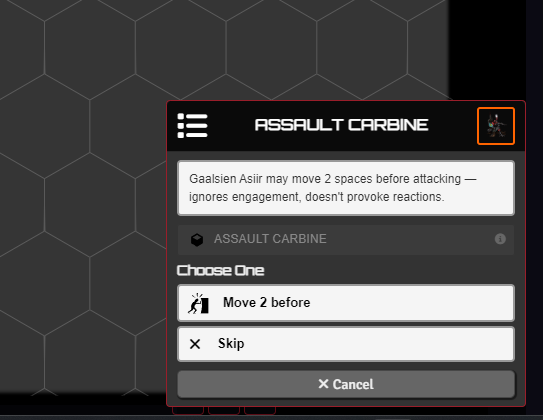
A choice card pauses and waits for a player to pick. startChoiceCard has four modes:
- OR - pick one option, the card closes.
- AND - every option must be clicked. Each runs as soon as it's confirmed.
- Vote and Hidden Vote - the card is broadcast to its recipients. You watch a live tally and click Confirm to resolve (hidden keeps votes secret until then, ties are broken by you).
Its userIdControl option routes a card to one player or a list (first to respond wins). A non-interactive waiting card (startWaitCard) shows "waiting for X" in the meantime.
openChoiceMenu builds and sends a choice or vote card from a dialog, no code needed.
Card and flow stacking
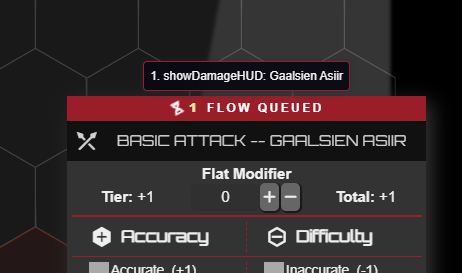
Lancer shows one roll card at a time, and so do these. When several fire at once (an area attack hitting five tokens, or a pile of reactions), they queue instead of overwriting each other, including attack, damage, and stat-roll cards and the interactive cards above. A badge on the active card counts how many are still queued.
Picking targets and areas
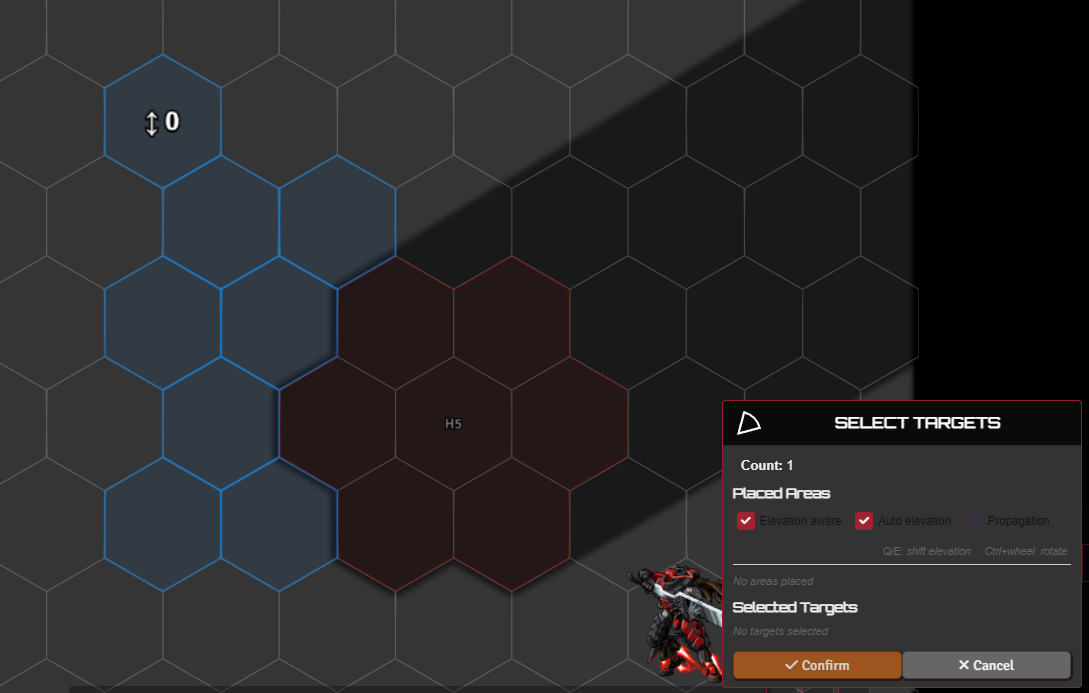
chooseToken highlights the valid tokens in range and asks you to pick one or more, with an optional filter (allies only, for example).
For area effects it switches to blast / cone / line / burst: place the shape on the canvas, Ctrl+wheel to rotate, and toggle elevation-aware, auto-elevation, and propagation (flood-fill that terrain blocks).
pickSingleTargetToggle skips the card: click a token to toggle it as your target.
HASE contest
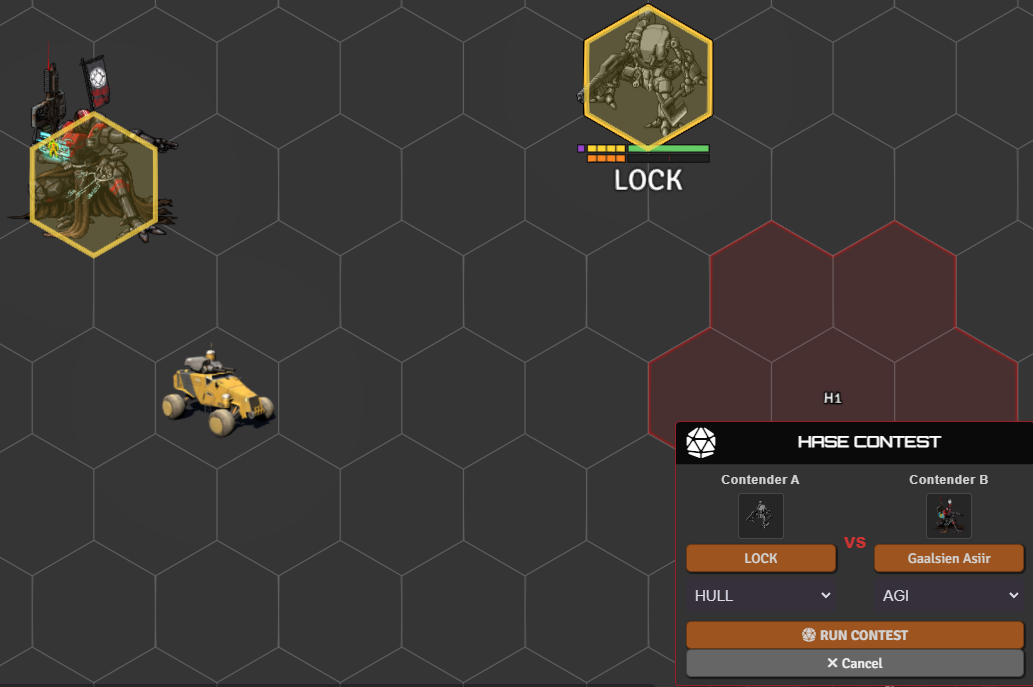
openHaseContestCard sets up a contest between two tokens: pick each contender and its HASE stat, roll both sides, and compare. It's reachable from a token's Contest entry under Skills, and Search, Jockey, Grapple, and Break Free all run through it.
Force check
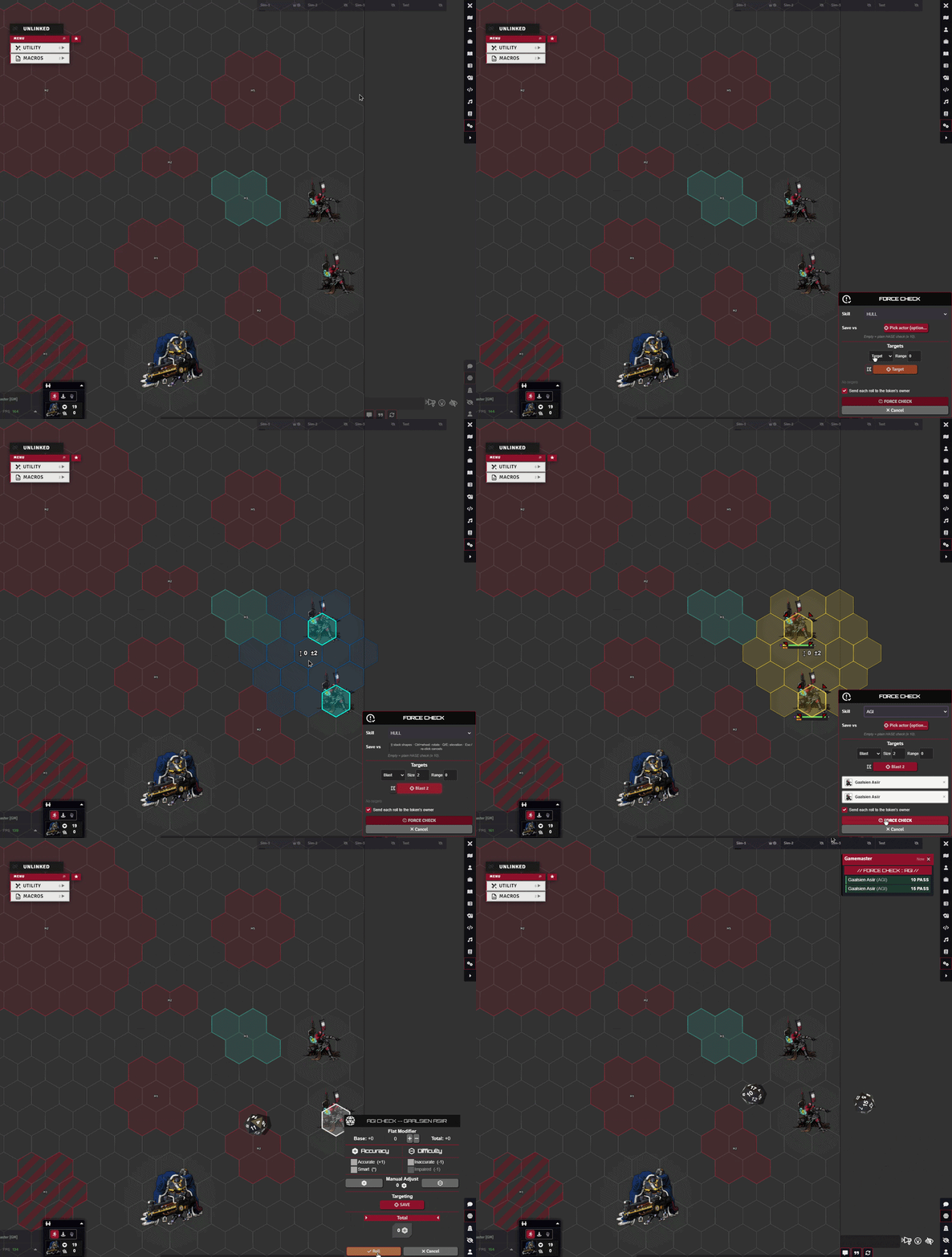
openForceCheckCard sends a HASE check to a batch of tokens: pick the skill, pick the targets like an attack roll, and each token's owner rolls it themselves. Give it a save-vs token and every check becomes a save against that actor's SAVE, pre-targeted in the roller's HUD. It's reachable from a token's Force Check entry under Skills.
Placing zones
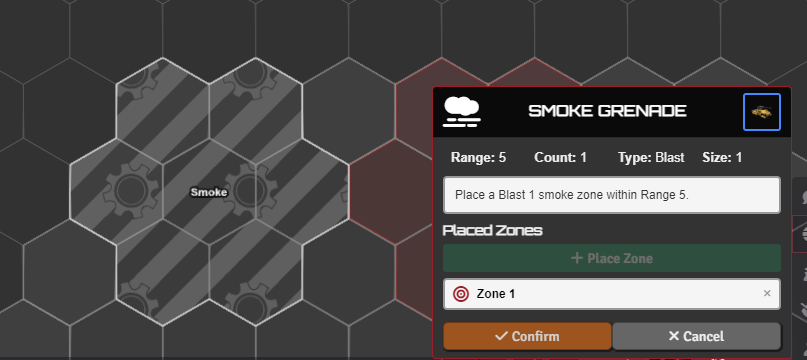
placeZone drops Blast / Burst / Cone / Line zones (through TemplateMacro). A zone can apply status effects to anyone inside, deal damage as a dangerous zone, or mark difficult terrain for the ruler. A zone can also follow a token.
For one-off effects you can skip the API: place a template by hand and attach the behaviour to it with TemplateMacro.
Moving and knocking back tokens
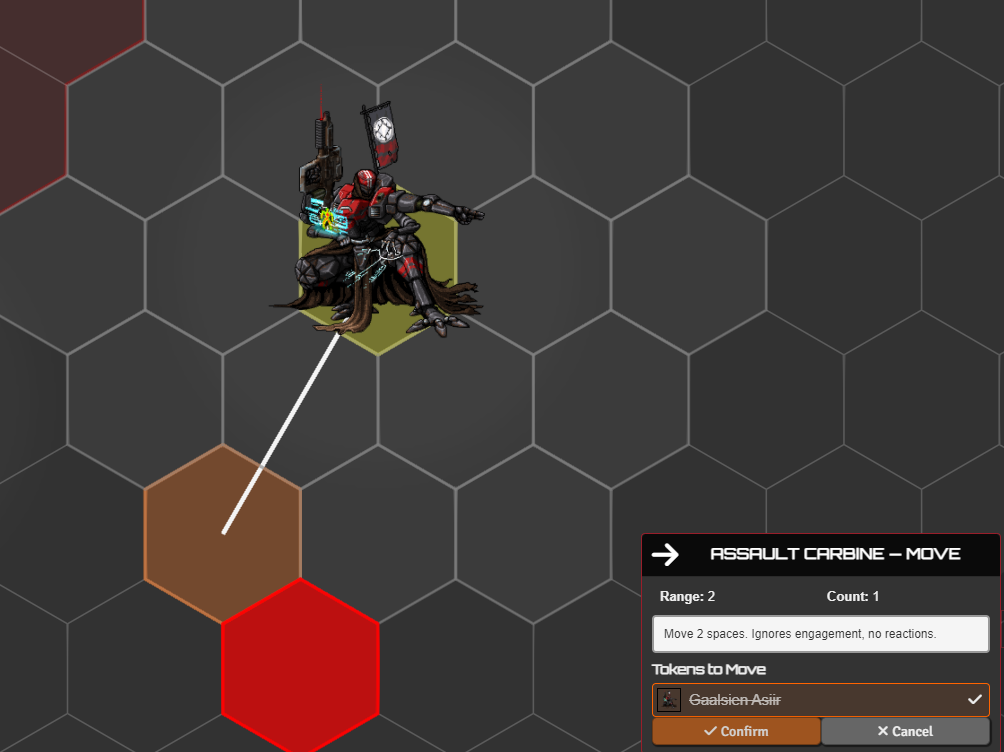
knockBackToken pushes or pulls tokens a set distance, one at a time, snapping to the grid and respecting obstacles. The Knockback checkbox in the damage dialog reads a weapon's Knockback tag and runs this after damage.
placeToken drops tokens at grid-snapped spots, and moveToken moves or teleports a token while drawing a trace from start to destination. The move, knockback, and teleport pickers take Shift+click waypoints for multi-leg paths.
Targeting in attack and check flows
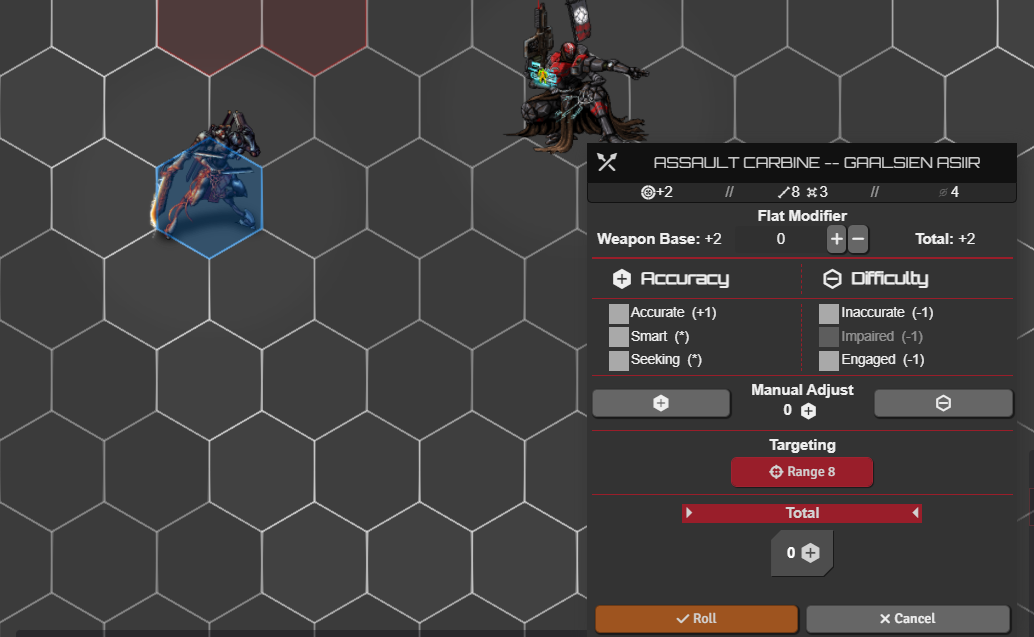
The attack HUD's target and area buttons are covered in Advanced Targeting and Measurement. Two related settings:
- Stat Roll Targeting - with
statRollTargetingon, a stat or skill roll (HULL / AGI / SYS / ENG) gets the same target button as an attack, using the picked token's save or matching stat as the difficulty. - Range Preview on Attack/Damage HUD - with
tah.rangePreviewOnAttackCardon, the attacker's reach is drawn on the canvas when the attack card opens, following the Thrown box for a thrown weapon.
Colors
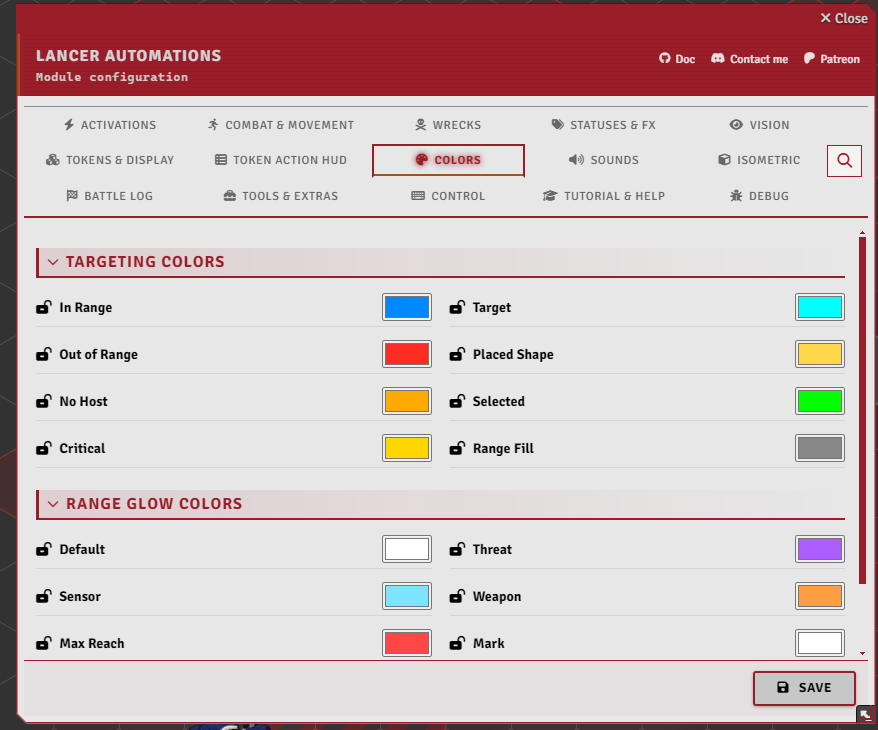
The Colors settings tab lets each player recolor the targeting and range-glow palette, with a button to reset them. It also carries the trace colors, the ruler speed-tier colors, the range-pulse style, and the Lancer Style Library theme.
Deployables
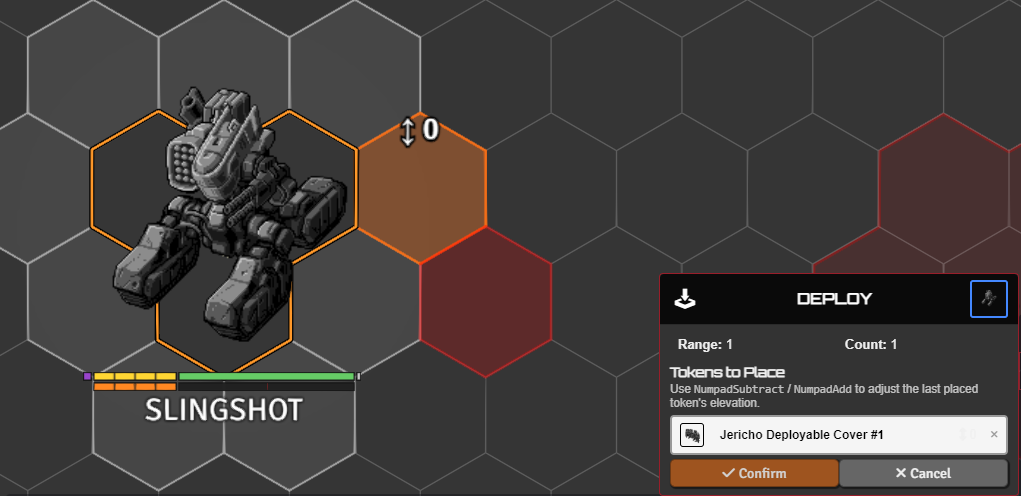
- Place a deployable - drop a drone, turret, or other deployable on the field (drones default to sensor range), and recall it when done. A deploy menu lists an actor's deployables.
- Throw a weapon - place a thrown weapon as a token on the ground (it's disabled in the sheet while it's out there) and pick it back up later.
- Hard cover - spawn a hard-cover token whose HP scales with its size.
- Extra deployables - attach extra deployables to an item that doesn't natively carry one.
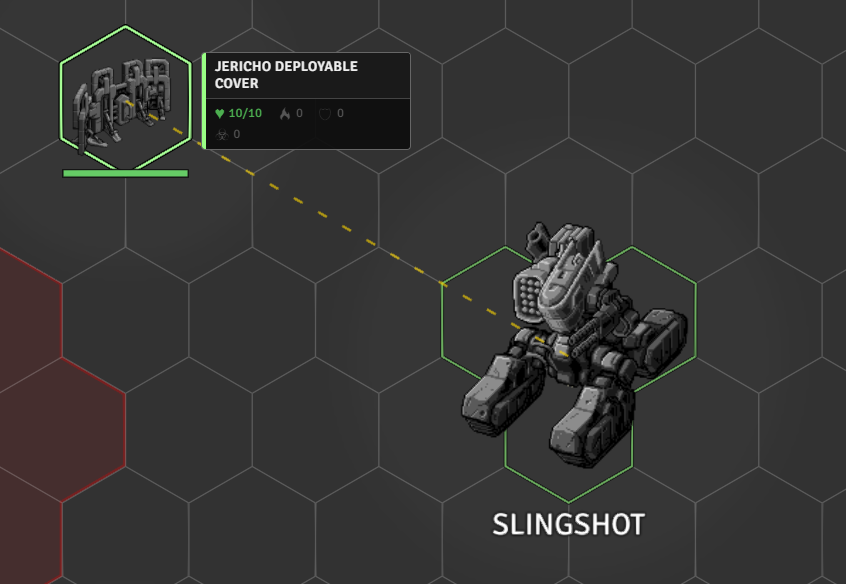
With linkManualDeploy, a deployable you drag onto the scene yourself links to your token and fires its onDeploy, like the deploy menu does. showDeployableLines draws a line from an owner to its deployables on hover.
Delayed appearance / reinforcement is in Gameplay Automation.
Add Extra
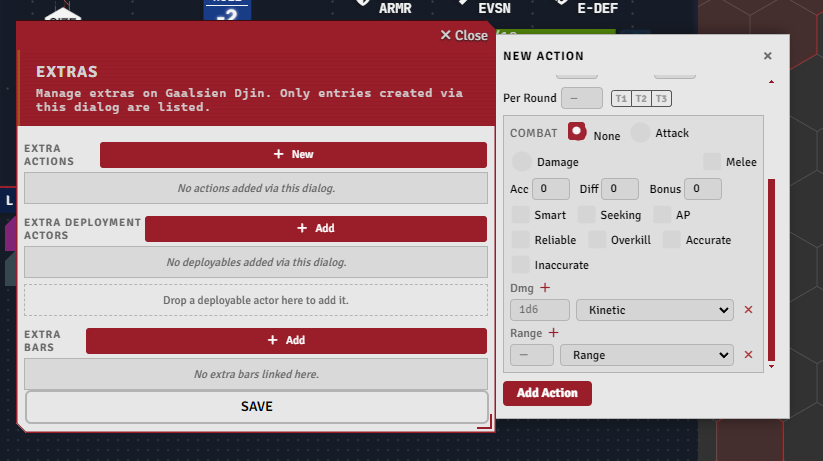
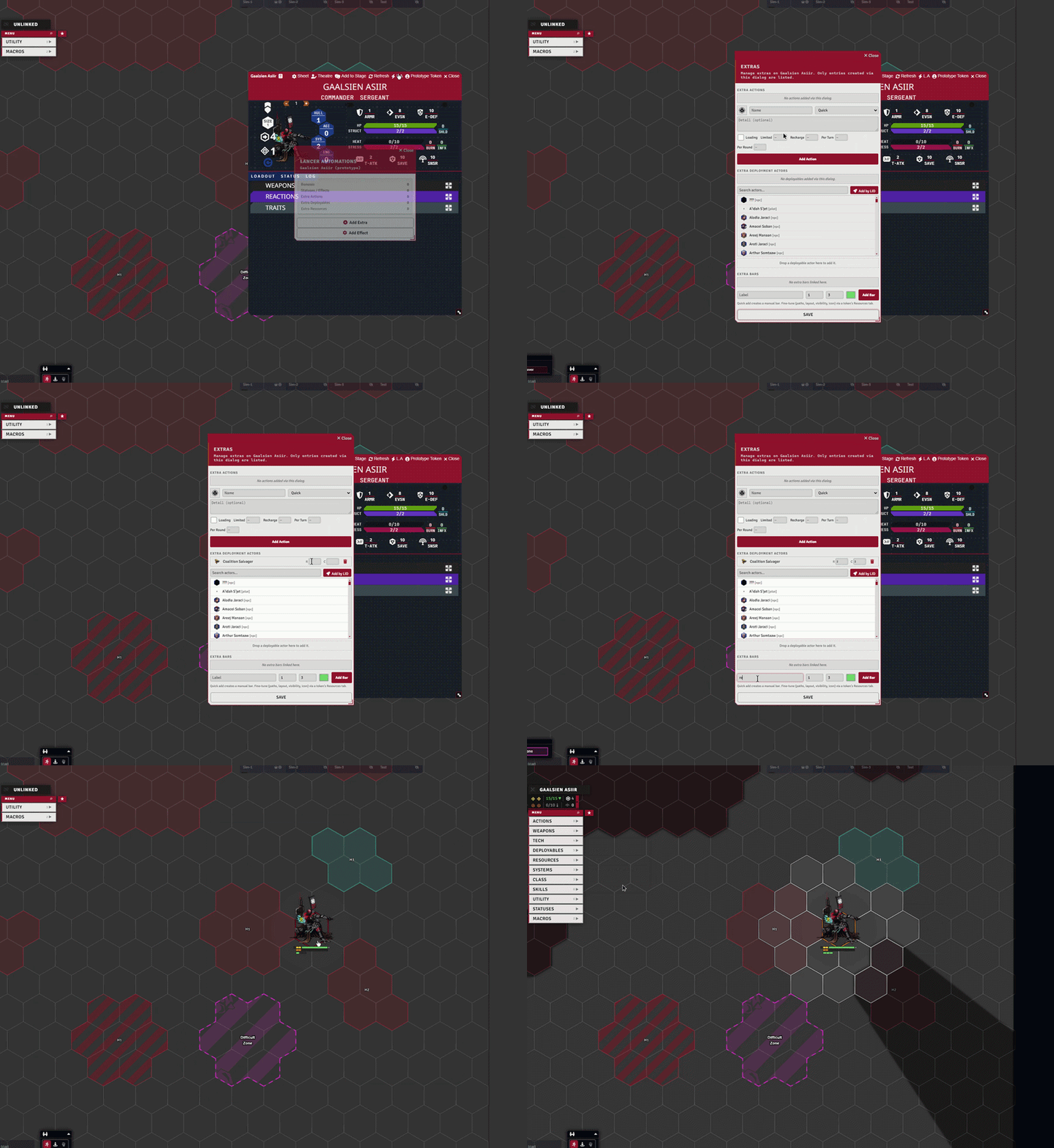
Add Extra attaches custom actions (activation type, plus charges, recharge, and limited / per-turn / per-round uses), extra deployables, and extra resource bars to an actor, no code needed. It works on a token's actor, on the prototype actor, or directly on an item - and only lists the entries you create here.
Open it from the L.A button on the actor or item sheet header (it reads L.A (N) once something is attached), which opens a dialog with Add Extra, Add Effect, and, on items, Extra Config. It's also under Token Action HUD (TAH) > Utility > Misc > Add Extra. Anything attached to an item is stored on the item and follows it: whoever carries it gets the extras.
Set Combat to Attack or Damage to make an action roll. Attack rolls a to-hit on your targets then carries its Dmg rows to the damage card, Damage rolls them straight. Acc / Diff / Bonus and the tag boxes work like a weapon's, and a Quick Tech / Full Tech / Invade activation rolls a tech attack. The Action Combat list does the same for actions the item or actor already has: the pencil attaches the roll, the action itself is untouched and still prints its usual card first.
Overlap token picker
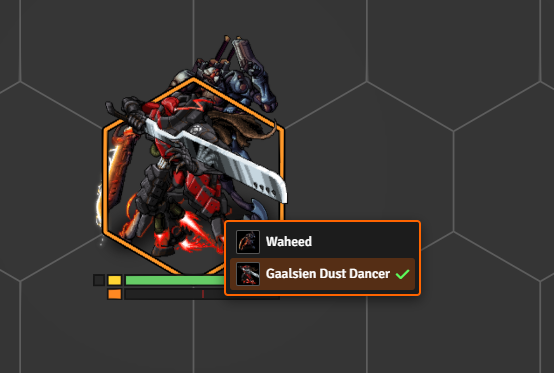
With overlapTokenPicker on, clicking a spot where tokens are stacked shows a small picker so you choose which one.
Share Interactive Tools
With displayToolsToOthers on (the default), your in-progress tools, target picking, zone/token placement, and movement traces show to other players as a faded ghost of the same shapes, so the table can follow what you're aiming at. A hidden caster or hidden tokens are never broadcast.
Notable options
| Option | What it does |
|---|---|
| Ctrl Ruler | Hold Ctrl to switch to the Measure Distance ruler. |
| Measure Toolbar Scale | Size of the measure toolbar. |